Saturday, August 4, 2012

Downloading the lesson files and setting the Maya project

Downloading the lesson files
You can download the lesson files from http://www.autodesk.com/maya-tutorials. Copy the Getting Started 2013 Lesson Files zip file to your local drive and unzip the folder.
Here, you will find all the template files that you need for the lessons, and you will save your work as you learn.
Before you can save your work, you need to set a project in Maya.
Setting the Maya project
A project is a file directory that stores and organizes all of the files (scenes, images, materials, textures, etc.) related to a particular scene. In Maya, you create and work with a variety of file types and formats. The project directory allows you to keep these different file types in their unique subdirectory locations within the project directory.
You can create a new project directory by choosing File > Project Window, and clicking the New button. Alternatively, you can choose an existing folder to act as the project directory if you have prepared a folder in advance. You can do this by choosing File > Set Project.
For these lessons, your project directory will be your ...\GettingStartedMaya2013LessonData\<subject area>. For example, if you are working on the Animation lessons, you will set your project directory to ...\GettingStartedMaya2013LessonData\Anim.
Creating a Maya project for this lesson
For the Maya Basics lesson, you will create a new project.
  • Select File > Project Window and click the New button.
  • Click the folder icon in the Location field to navigate to the GettingStartedMaya2013LessonData folder so that the project you create will be saved within this folder.
  • Enter Basics under Current Project.
  • Click Accept.
The Basics project has now been created.

The Maya interface

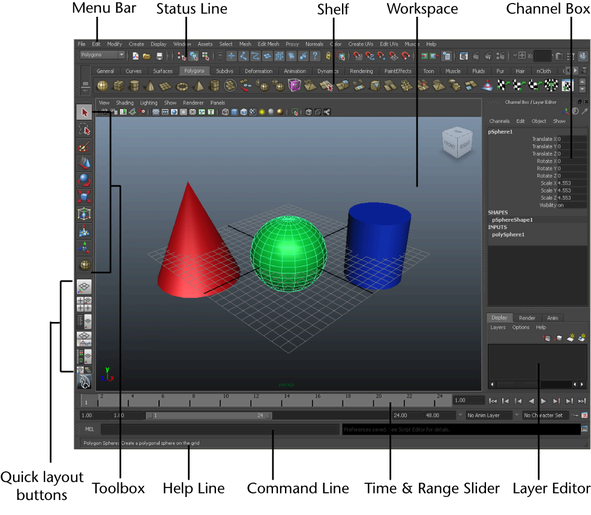
Now that Maya is running, you first need to understand what you are seeing. There are a lot of items displayed in the Maya user interface.
The best way to begin is to learn the fundamental tools and then learn additional tools as you need them. Begin by learning some of the main tools.
The Maya workspace
The Maya workspace is where you conduct most of your work within Maya. The workspace is the central window where your objects and most editor panels appear.
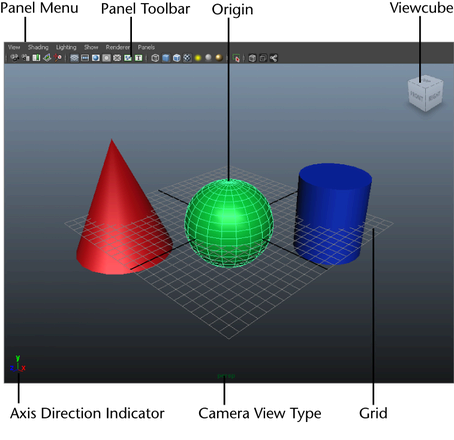
When you start Maya for the first time, the workspace displays by default in a perspective window, or panel. There are the other components of the default perspective view panel:
  • The panel is labeled persp at the bottom to indicate that you are viewing the Maya scene from a perspective camera view.
  • The panel has its own menu bar at the top left corner of the panel. These menus allow you to access tools and functions related to that specific panel.
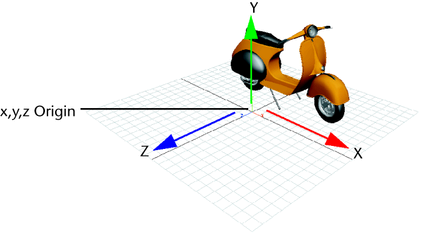
  • The grid is displayed with two heavy lines intersecting at the center of the Maya scene. This central location is called the origin. The origin is the center of Maya’s 3D world, and with all object’s directional values measured from this location.
In Maya, like many other 3D applications, the three dimensions are labeled as the X, Y, and Z axes. The origin is located at X, Y, Z position of 0, 0, 0. The grid also lies along the X, Z plane. We refer to this as a plane because you might visualize an imaginary, flat, two-dimensional square laying along this 3D position.
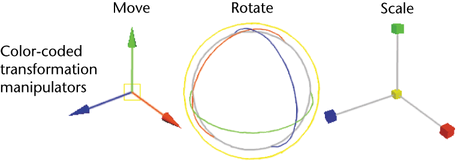
Maya labels the X, Y, and Z axes with a color scheme: red for X, green for Y, and blue for Z. Many tools that you use in Maya use this color scheme to indicate that you are accessing a particular item that relates to X, Y, and Z in some way.
The axis indicator shows in which direction, X, Y, or Z, you are viewing the Maya scene. The axis indicator is color coded in the red, green, and blue color scheme and appears in the lower left corner of a view panel.
This is extremely useful if you are new to 3D, as many of the instructions in this manual and the Maya Help assume you know where you are viewing the scene in relation to the X, Y, Z axes.
Main Menu bar
Tools and items are accessible from pull down menus located at the top of the user interface. In Maya, menus are grouped into menu sets. These menu sets are accessible from the Main Menu bar.
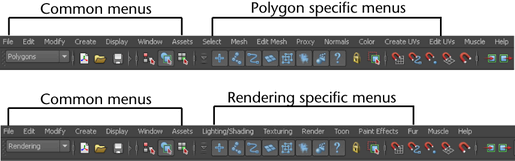
The Main Menu bar appears at the top of the Maya interface directly below the Maya title bar and displays the chosen menu set. Each menu set corresponds to a module within Maya: Animation, Polygons, Surfaces, Rendering, and Dynamics. Modules are a method for grouping related features and tools.
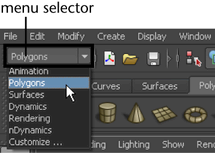
You switch between menu sets by choosing the appropriate module from the menu selector on the Status Line (located directly below the File and Edit menus). As you switch between menu sets, the right-hand portion of the menus change, but the left-hand portion remains the same; the left-hand menus are common menus to all menu sets. The left-hand menus contain File, Edit, Modify, Create, Display, Window, and Assets.
To select a specific menu set
  1. On the Status line, select Animation from the drop-down menu. The Main Menu changes to display the menu set that relates to the Animation module. In particular, menu titles such as Animate, Deform, Skeleton, Skin, and so on, appear.
  2. Using the menu selector, choose Polygons from the drop-down menu. The main menu changes to display the menu set for Polygons. Menu titles such as Select, Mesh, Edit Mesh, and so on, appear.
    For now, leave the menu set at Polygons. You will use this set in the next step.
To create a primitive 3D object from the Polygons menu set
  1. Select Create > Polygon Primitives > Interactive Creation and ensure that a check mark does not appear beside this item. For this lesson, you won’t use this option.
  2. From the Main Menu Bar, select Create > Polygon Primitives > Cube. Maya creates a 3D cube primitive object and places it at the center (origin) of the Maya workspace.
Status Line
The Status Line, located directly below the Main Menu bar, contains a variety of items, most of which are used while modeling or working with objects within Maya. Many of the Status Line items are represented by a graphical icon. The icons save space in the Maya interface and allow for quick access to tools used most often.
In this lesson, you learn about some of the Status Line areas.
You’ve already learned the first item on the Status line: the Menu Selector used to select between menu sets.
The second group of circled icons relate to the scene and are used to create, open, and save your Maya scenes.
The third and fourth group of buttons are used to control how you can select objects and components of objects. You will learn more about selection of objects in later lessons.
The fifth group of icons are used to control the Snap Mode for objects and components. You will begin to use these tools in a later lesson in this chapter.
The last section comprise three buttons that are used to show or hide editors, including the Attribute Editor, Channel Box, Layer Editor, and Tool Settings. The default display shows the Channel Box and the Layer Editor. When you create an object, like the cube for example, information about that object displays in these editors. You will learn how to use these editors later in this chapter.
For better organization on the Status Line, all of the icon buttons are broken into groups that you can expand and collapse, as shown.
Shelf
The Shelf is located directly below the Status line. The Maya Shelf is useful for storing tools and items that you use frequently or have customized for your own use. You can keep the tools and items you use most frequently in a location that provides handy access. Maya has some of the Shelf items pre-configured for your use.
To create an object using a tool from the Shelf
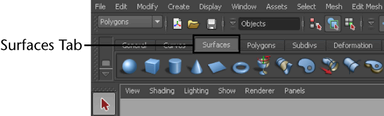
  1. From the Shelf, select the Surfaces tab in order to view the tools located on that shelf.
  2. Select Create > NURBS Primitives > Interactive Creation to ensure that a check mark does not appear beside the item. For this lesson, you won’t use this option
  3. From the Shelf, select the NURBS sphere icon located at the left end by clicking on it. Maya creates a sphere primitive object and places it at the center of the Maya workspace in the same position as the cube.
    Tip You can determine if this is the correct tool prior to choosing it by first placing your mouse cursor over the icon, the name or description of it appears in a popup window directly over it.
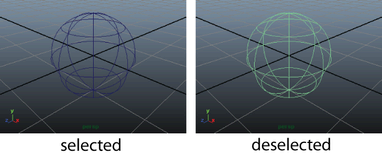
In your scene view the wireframe outline of the cube you created earlier in the lesson has changed color to navy blue, and the sphere is displayed in a bright green color. The sphere is now the selected object and the cube is no longer selected. In Maya, when the object displays like this, we refer to it as being selected or active.
Selection of objects and components is a way of indicating to Maya that this particular item is to be affected by the tool or action you will subsequently choose. As you work with Maya, you will be selecting and deselecting items a lot. You will learn how to select and deselect objects later in this chapter.
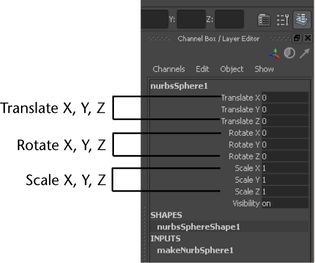
Some numerical information appears in the Channel Box editor on the right hand side of the user interface. This information relates to X, Y, and Z, translation, rotation, and scaling for the active object. The X, Y, and Z Translate numerical values are currently set to 0. This indicates that the sphere’s location is at the origin. The Channel Box is useful for viewing and editing this type of basic information. You will use the Channel Box later in this chapter.
To hide or show the Channel Box
  1. To hide the Channel Box, click the Show/Hide Channel Box icon from the right end of the Status line. The Channel Box disappears, and the perspective scene view expands slightly. With the Channel Box hidden, you have more working area in your scene view.
  2. To show the Channel Box, click the Show/Hide Channel Box icon on the Status line. The Channel Box appears in the scene view.
Starting Maya

To start Maya on Windows
  1. Do one of the following:
    • Double-click the Maya icon on your desktop.
    • From the Windows Start menu, select All Programs > Autodesk > Autodesk Maya 2013 > Maya 2013.
To start Maya on Mac OS X
  1. Do one of the following:
    • Double-click the Maya icon on your desktop.
    • Click the Maya icon in the Dock.
    • From the Apple Finder menu, select Go > Applications and then browse for the Maya icon and double-click it to start Maya.
To start Maya on Linux
  1. Do one of the following:
    • Double-click the Maya icon on your desktop.
    • In a shell window, type: maya.

Introduction

Just as the driver of an automobile is familiar with the dashboard of their vehicle, it is important for you to become familiar with the Maya “dashboard.”
The Maya user interface refers to everything that the Maya user sees and operates within Maya. The menus, icons, scene views, windows, and panels comprise the user interface.
Through the Maya user interface you access the features and operate the tools and editors that allow you to create, animate, and render your three dimensional objects, scenes, and effects within Maya.
As you spend time learning and working with Maya, your knowledge of and familiarity with the user interface will increase until it becomes second nature.
In this lesson you learn how to:
  • Start Maya on your computer.
  • Use the Maya interface so that you can begin to understand where and how to access the critical tools to get started with Maya.
  • Select the menu and icon sets within Maya.
  • Learn the names of tools related to the icons in Maya.
  • Create a new scene view.
This first lesson contains additional explanations of the tools and concepts compared to many of the lessons later in this manual. We suggest you take some time to review these explanations as they lay the foundation for understanding where things are in Maya.

Lesson 1: The Maya user interface

Preparing for the lessons

  • Ensure Maya is installed and licensed on your computer. If you have not installed Maya yet, refer to the Installation and Licensing manual that accompanies your Maya software package. It outlines the requirements for installing Maya and procedures for installation and licensing Maya on supported hardware platforms.
  • If you have never started Maya on your computer before, it will start for the first time using the default preference settings.
  • If you have run Maya before, you should ensure that your Maya user preferences are reset to their default setting. This ensures that the lessons appear and work as described. Refer to Restoring default user settings for instructions on resetting user preferences to the default setting.
  • Unless otherwise indicated, the directions in this chapter for making menu selections assume you’re working from the Polygons menu set.
    Note Before you perform the lessons in this book, ensure that the Interactive Creation option for primitives is turned off by selecting Create > Polygon Primitives > Interactive Creation and Create > NURBS Primitives > Interactive Creation. That is, ensure a check mark does not appear beside these menu items.

Introduction

Critical to learning any software application is some initial understanding of the basic concepts: how that software’s world works and the fundamental skills you need to work in that world. If you have never used a three dimensional (3D) software application before, you may initially find Maya different compared to 2D applications.
If you are wondering “where do I begin?”, this chapter is the best place to start. We recommend that you complete the lessons in this chapter so the essential concepts and skills presented become familiar to you.
This chapter covers some of the fundamental concepts and skills for Maya in four lessons:

Lesson 1 The Maya user interface:

Just as the driver of an automobile is familiar with the dashboard of their vehicle, it is important for you to become familiar with the Maya “dashboard.”
The Maya user interface refers to everything that the Maya user sees and operates within Maya. The menus, icons, scene views, windows, and panels comprise the user interface.
Through the Maya user interface you access the features and operate the tools and editors that allow you to create, animate, and render your three dimensional objects, scenes, and effects within Maya.
As you spend time learning and working with Maya, your knowledge of and familiarity with the user interface will increase until it becomes second nature.
In this lesson you learn how to:
  • Start Maya on your computer.
  • Use the Maya interface so that you can begin to understand where and how to access the critical tools to get started with Maya.
  • Select the menu and icon sets within Maya.
  • Learn the names of tools related to the icons in Maya.
  • Create a new scene view.
This first lesson contains additional explanations of the tools and concepts compared to many of the lessons later in this manual. We suggest you take some time to review these explanations as they lay the foundation for understanding where things are in Maya.

Lesson 2 Creating, manipulating, and viewing objects:

Using primitive objects to model 3D forms is a great place to continue learning about Maya. You can create many types of 3D objects using Maya and then move, scale, and rotate them to create more complex forms in your scene.
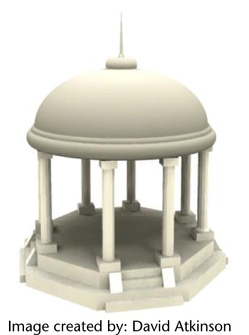
In this lesson, you begin to construct a classic temple using the primitive object creation tools in Maya. The project is not very complex and provides you with experience in using some of the important object manipulation and viewing tools.
As you continue to work with Maya, you’ll learn how to visualize more complex forms using these basic objects. Maya has many advanced tools and options for modeling complex forms, as you will learn in later chapters.
In this lesson, you learn how to:
  • Create 3D primitive objects.
  • Select objects for manipulation and editing purposes.
  • Move and rotate objects using your mouse.
  • Move, rotate, and scale objects using numeric input.
  • Duplicate objects.
  • Change the viewing panels in Maya using a variety of methods so you can view your objects from different points of view.
  • Undo actions when you need to undo a particular task or step.